

Kahoot Login is the first step to use Kahoot, a fun learning platform where teachers and hosts create quizzes and players answer questions in a live game. If you are a teacher, a student, or a host, you need the right way to sign in, because the login path is different for a game creator and for a player. In this guide from DonglyTech, we explain how to log in to Kahoot on a computer and on a phone, how to join a game with a PIN, how to reset a forgotten password, and how to fix the most common login problems.
Table of Contents
What Is Kahoot?
Kahoot is a game based learning platform that turns lessons and quizzes into a fun game. A teacher or a host creates a quiz, then shares a Game PIN with the players. Players join from their own phones or computers, answer the questions as fast as they can, and see their score on the host screen. Schools use it for class quizzes, and offices and friends use it for quiz nights too.
Kahoot Login works in two ways. A creator or a host needs an account, so they sign in on the main Kahoot site or in the app. A player needs no account at all, because players only join a game with a PIN. Keep this point in mind as you read the steps below.
If you enjoy game guides, see our post on GamerXYT com categories on DonglyTech.
How to Do Kahoot Login on a Computer
For Kahoot Login on a computer, use the main Kahoot website to sign in to your creator or host account. Follow these steps in order.
- Open your browser and go to kahoot.com.
- Click the “Log In” button at the top right of the page.
- Type your registered email address and your password.
- If you signed up with Google, Microsoft, Apple, or Clever, click that option and sign in with that account.
- If Kahoot asks for a verification code, find it in your email inbox and type it in.
- Click to continue, and you will land on your dashboard.
Your dashboard is your home page inside Kahoot. From there you can create a new quiz, open a quiz you saved before, or start a live game.
Always use the same login method you used at sign up. If you made your account with Google, log in with Google each time. If you try email and password instead, Kahoot may say the account does not exist. This mistake causes many login problems, so check it first.
Kahoot Login on Your Phone with the App
You can also do Kahoot Login from the app on your phone or tablet. The steps are almost the same as on a computer, but the buttons are in a different place. Follow these steps.
- Open the Kahoot app on your phone.
- Tap “Log In” on the first screen.
- Choose your sign in method: Google, Apple, Microsoft, or email.
- Type your email and password if you picked email, or follow the steps for your Google, Apple, or Microsoft account.
- If Kahoot sends a verification code to your email, type it in to finish.
- Tap continue, and your dashboard will open in the app.
Log in to the Kahoot app with Google, Apple, Microsoft, or email.
From the app you can create quizzes, host games, and join games too. Keep the app updated, because an old version can show login errors.
How to Join a Kahoot Game with a PIN
Players do not log in to play a game. If you are a player, you need no Kahoot account, no password, and no login page. You only need the Game PIN from the host. Here is how it works.
- Open your browser or the Kahoot app and go to kahoot.it.
- Type the 6 digit Game PIN that the host shows on the screen.
- Tap “Enter” to join the game lobby.
- Type a nickname that the host can see.
- Wait for the host to start the game, then tap the answer shape that matches your choice.
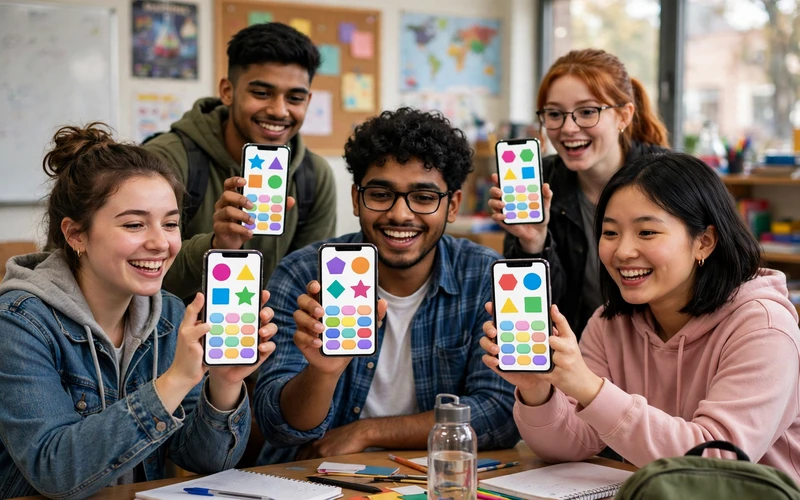
Students enter the Game PIN on their phones to join a quiz.
Remember the split: kahoot.it is for players who join with a PIN, and kahoot.com is for accounts, creating quizzes, and hosting games. A PIN will not work on kahoot.com, because that site is for Kahoot Login. And kahoot.it has no login form, because it is only for players.
If the PIN does not work, check that you typed all 6 digits in the right order. A PIN only works while the game lobby is open, so ask the host if the game has started yet. If the host closed the lobby or started a new game, you will need the new PIN.
How to Reset Your Kahoot Password
A Kahoot Login password reset takes only a few minutes. If you forgot your password, reset it from the login page. You do not need a new account, and your quizzes and results stay safe.
- Go to kahoot.com and click “Log In”.
- Click “Forgot Password” under the password box.
- Type the email address you used to make your Kahoot account.
- Open your email inbox and find the reset email from Kahoot.
- Click the reset link in the email and type a new password.
- Go back to the login page and sign in with your new password.
If the reset email does not show up, check your spam or junk folder first. Also check that you typed the right email address, because the reset link only goes to the email linked to your account. If you signed up with Google, Microsoft, Apple, or Clever, you have no Kahoot password to reset, so reset the password on that account instead.
Kahoot Login for Young Students and School Accounts
Young students use a different Kahoot Login path. Students under 13 in the United States and under 16 in other countries do not log in with a direct email address. Instead, they log in with a unique username or with single sign on through their school account. A teacher or a parent sets this up, and the student only needs to remember the username and password they were given.
If your school uses single sign on, click “Continue with Single Sign-on” on the login page, then type your work or school email or the workspace link your admin gave you. Then sign in with your school account, and Kahoot opens your dashboard. This is common in schools and offices, where one login works for many tools.
Teachers who want more help with class setup can read this Kahoot login guide for educators and students on WispWillow. If you are a parent, help your child log in the first few times, and save the username in a safe place.
Common Kahoot Login Problems and How to Fix Them
Most Kahoot Login problems have a simple cause. Work through this list, and one of these fixes will solve your problem in most cases.
- Wrong login method: you signed up with Google but try email and password, or the other way round. Use the same method you used at sign up.
- Wrong password: you typed it with a small mistake, or caps lock is on. Type it slowly, check caps lock, and use the reset link.
- Email typed with a mistake: one wrong letter means Kahoot cannot find your account. Check each letter of your email address.
- Expired verification code: the code only works for a short time. Ask for a new code and type it in right away.
- Account locked after too many wrong tries: too many failed logins can lock the account for a short time. Wait a while, reset your password, and try once more.
- Wrong website: you are on a look alike site, not the real Kahoot site. Type kahoot.com in your browser yourself, and never log in through a link from a random message.
If your Kahoot Login still fails, try a different browser or clear your browser cache and cookies, then try again. You can also check the official Kahoot help center, which lists the steps for account and sign in problems.
Tips to Keep Your Kahoot Account Safe
A safe account saves you from lost quizzes and locked logins. Keep your Kahoot Login safe with these simple habits.
- Use a strong password that you do not use on any other site.
- Never share your password or your login details with anyone, even a friend.
- Log out on shared computers, such as a school or library computer.
- Check the web address is kahoot.com before you type your password.
- Change your password if you think someone else has seen it.
For more simple tech tips, see our guide on 10.0.0.1 pause time on DonglyTech.
Final Thoughts
Kahoot Login is easy once you know which path is yours. Hosts and teachers sign in on kahoot.com or in the Kahoot app with email or with Google, Microsoft, Apple, or Clever, and players just join at kahoot.it with a 6 digit Game PIN and a nickname. Use the same login method you used at sign up, keep your password safe, and use the reset link if you ever forget it.
FAQs
How do I log in to Kahoot?
For Kahoot Login, go to kahoot.com, click “Log In” at the top right, and type your registered email and password. You can also continue with Google, Microsoft, Apple, or Clever. If Kahoot asks for a code, type the code from your email to reach your dashboard.
Do players need to log in to join a Kahoot game?
No, players do not log in. Players go to kahoot.it, type the 6 digit Game PIN from the host screen, enter a nickname, and play. Only the host needs a Kahoot account to create and host the game.
What is the difference between kahoot.com and kahoot.it?
Kahoot.com is for accounts, creating quizzes, and hosting games, and it is where Kahoot Login happens. Kahoot.it is only for players to join a game with a Game PIN. A PIN will not work on kahoot.com, and kahoot.it has no login form.
How do I reset my Kahoot password?
On the login page, click “Forgot Password”, type your account email, and follow the reset link to set a new password. If you signed up with Google, Microsoft, Apple, or Clever, reset the password on that account instead.
Why does my Kahoot login keep failing?
The most common causes of a failed Kahoot Login are a wrong login method, a wrong password, a typing mistake in the email, an expired verification code, or an account locked after too many wrong tries. Use the same login method you used at sign up, check your spam folder for the code, and reset your password.
