
Table of Contents
10.0.0.1 Pause Time: What It Is and How It Works
10.0.0.1 pause time is a simple way to stop the internet for one device in your home for a while. If your child spends too much time on a tablet at night, or you want a quiet dinner with no phones, this feature can help. You do not need any special tool. You only need your home Wi-Fi and a web browser.
Many home routers let you open a settings page with the address 10.0.0.1. From that page, you can see the devices on your network and pause the internet for any of them. In this guide, you will learn what 10.0.0.1 is, what pause time means, and how to use it step by step. You will also learn how to set a daily schedule, how to turn the internet back on, and what to do when something does not work.
What Is 10.0.0.1?
10.0.0.1 is a private IP address. Many routers use it as the address of their own settings page. When you type it into a browser on your home network, your router shows you its admin page. That page is also called the router login page or the admin panel.
The number 10.0.0.1 sits inside a range of addresses that are set aside for private networks. These addresses never appear on the public internet, and this one only works inside your own home network. You can read more about how private IP address ranges work on Wikipedia’s private network page. Other routers use different addresses, such as 192.168.1.1. If you enjoy simple explainers like this one, you may also like our guide that explains what UTCRGB.com is and how it works.
What Does Pause Time Mean?
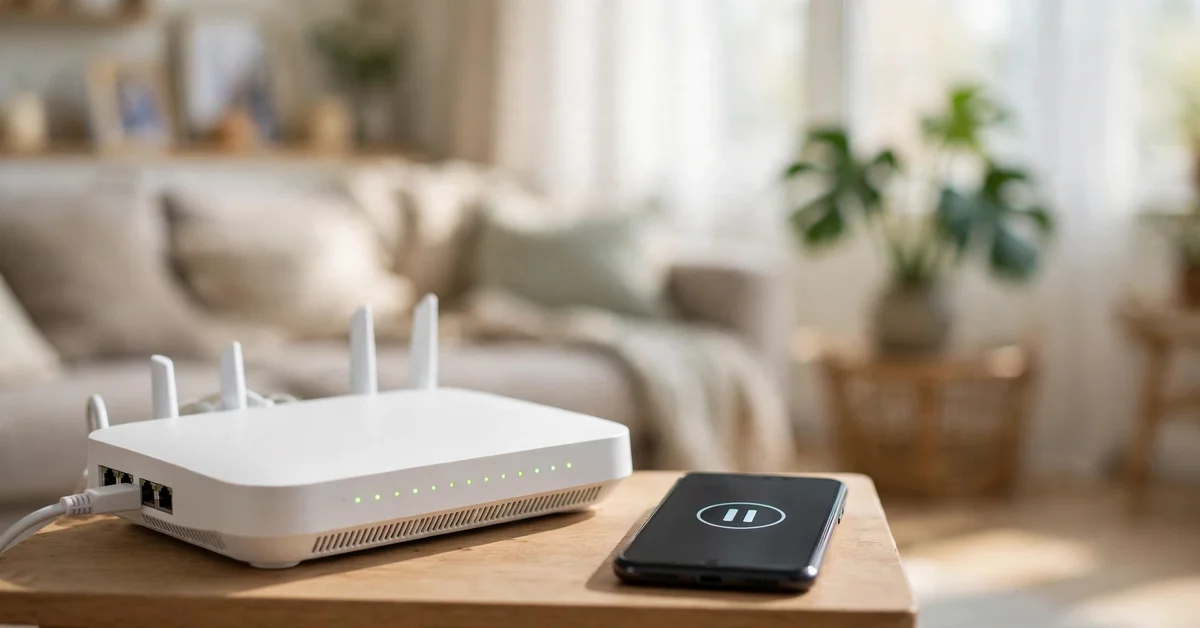
Pause time is a router feature that stops internet access for a device or a group of devices for a set time. When you pause a device, it stays connected to Wi-Fi, but it cannot load websites, videos, or apps that need the internet. The device itself still works. Only its internet access stops.
Parents use this feature most often. You can pause a child’s tablet at bedtime or during homework time. You can also pause your own phone for a break from social media, or pause a smart TV during family time. The idea is simple: the internet stops for that device until you turn it back on or until the pause time ends.
Pause time is different from turning off Wi-Fi. When you turn off Wi-Fi, every device in the house loses its connection. When you pause one device, only that device loses internet access. Everything else keeps working as normal.

How to Open 10.0.0.1 and Find the Pause Option
You can set a pause in five simple steps. The screens look a little different on each router brand, so the names of the menus may change. The basic steps stay the same on most home routers.
Step 1: Connect to Your Home Wi-Fi
First, connect your phone or computer to your home Wi-Fi network. You must be on the same network as the router. The 10.0.0.1 page will not open if you are using mobile data or someone else’s Wi-Fi.
Step 2: Open 10.0.0.1 in Your Browser
Open any web browser, such as Chrome, Safari, or Firefox. Type 10.0.0.1 into the address bar at the top and press Enter. Type only the numbers and dots. Do not add www or .com at the end.
Step 3: Sign In to the Router Page
Most routers ask for a username and password before they show the settings. Many routers print the default login details on a sticker on the bottom or back of the device. If you changed the password during setup, use the one you chose. Never share your router password with people you do not trust.
Step 4: Find the Pause or Parental Control Section
After you sign in, look for a section with a name like Parental Controls, Device Management, Connected Devices, or Access Control. Some routers call it Pause Internet or Screen Time. Open that section and you should see a list of the devices on your network.
Step 5: Choose the Device and Set the Pause
Pick the device you want to pause from the list. If the names look unclear, check the device name on the device itself. Then choose Pause, or set how long the pause should last. Some routers let you pick 30 minutes, 1 hour, or until a time you choose. Save your choice, and the device will lose internet access right away.
How to Set a Pause Schedule
A one-time pause works well for a single evening. A schedule works better for a daily routine. Most routers with parental controls let you set days and times when a device has no internet access. For example, you can block the internet every school night from 9 p.m. to 7 a.m.
To set a schedule, go back to the parental control or device section on the 10.0.0.1 page. Choose the device or the child profile, then look for a schedule or bedtime option. Pick the days of the week and the start and end times. Save the schedule and the router will pause and unpause the device on its own each day.
Some router apps also let you do this from your phone. Google’s Family Wi-Fi, for example, lets you pause the internet for a group of devices and set a daily schedule from the Google Home app. You can read how it works on Google’s Family Wi-Fi help page.

What Happens When You Pause the Internet?
When a device is paused, it cannot reach the internet at all. Websites will not load. Videos will stop. Online games will disconnect. Apps that need the internet will show an error or keep loading without success. The device will still show that it is connected to Wi-Fi, because the Wi-Fi link itself is still on. Things that do not need the internet, like music or photos saved on the device, will still work.
How to Unpause a Device
To turn the internet back on, open the 10.0.0.1 page again and sign in. Go to the same pause or parental control section and find the paused device. Choose Resume, Unpause, or a similar button. The device should get its internet access back within a few seconds.
If you set a timed pause, you do not need to do anything. The router will turn the internet back on by itself when the time ends. If you set a daily schedule, the internet will come back at the end time you chose, and pause again the next day at the start time.
If a device still has no internet after you unpause it, turn its Wi-Fi off and on again.
Common Problems and Easy Fixes
Sometimes the 10.0.0.1 page does not open. The most common reason is that your router uses a different address. On a Windows computer, you can open the Command Prompt, type ipconfig, and look for the Default Gateway number. On a Mac, you can find it in System Settings under Network. That number is your router address.
Another common problem is a wrong password. If the default password on the sticker does not work, someone may have changed it. You can reset the router with the small reset button on the device, but that will erase all your settings, including your Wi-Fi name and password. Only reset the router if you are ready to set it up again from the start.
Tips to Use Pause Time Well
Talk to your family before you set a pause. Tell your kids when the internet will stop and when it will come back. A clear rule works better than a surprise.
Use pause time for yourself too. A short break from the internet in the evening can help you sleep better and spend more time with your family. You can pause your own phone for an hour each night and see how it feels.
Keep your router password safe and change it from the default if you have not done so already. Anyone who knows the password can change your settings. Also, keep a note of which device is which in the router list, so you pause the right one. If you want a fun way to see how much time games take, read our guide to GamerXYT.com categories and check which game types your kids play most. A steady daily routine, such as dinner time and bedtime, is easier to follow than a random pause.
Final Thoughts
10.0.0.1 pause time is one of the easiest tools your router gives you. You open the router page, pick a device, and stop its internet for as long as you need. No new app is needed, and no extra cost is involved. It works for bedtime, homework time, dinner time, or any moment when you want a break from screens.
If you want to learn more about how websites and online tools work, start with our DonglyTech homepage and explore our simple tech guides. Try a pause tonight and see how it changes your evening.
FAQs About 10.0.0.1 Pause Time
What is 10.0.0.1 pause time?
10.0.0.1 pause time is a router feature that stops internet access for a device for a set time. You open the router settings page at 10.0.0.1, pick a device, and pause its internet. The device stays on Wi-Fi, but it cannot load websites or apps until you unpause it or the pause time ends.
Is 10.0.0.1 the same on every router?
No, it is not the same on every router. Many routers use 10.0.0.1, but others use 192.168.1.1 or 192.168.0.1. Check the sticker on your router or look up the default gateway in your device network settings to find the right address.
Can I pause the internet for only one device?
Yes, you can pause the internet for only one device. The pause feature works per device, so other phones, laptops, and TVs in your home keep their internet access.
Does pausing the internet turn off Wi-Fi?
No, pausing does not turn off Wi-Fi. The device stays connected to your Wi-Fi network, but the router blocks its internet traffic. Wi-Fi itself stays on for all other devices.
How do I unpause a device before the time ends?
Open the 10.0.0.1 page again, sign in, and go to the pause or parental control section. Find the paused device and choose Resume or Unpause. The internet should come back within a few seconds. If it does not, turn the device Wi-Fi off and on again.
